Markdown Extensions
Header Anchors
Headers automatically get anchor links applied. Rendering of anchors can be configured using the markdown.anchor option.
Links
Internal Links
Inbound links ending in .md or .html are converted to <router-link> for SPA navigation.
Each sub-directory in your static site should contain a README.md. It will automatically be converted to index.html.
TIP
When writing the relative path to a directory's index.html, don't forget to close it off with a /, otherwise you will get a 404. For example, use /config/ instead of /config.
If you want to link to another markdown file within a directory, remember to:
- Append it with either
.htmlor.md - Make sure the case matches since the path is case-sensitive
Example
Given the following directory structure:
.
├─ README.md
├─ foo
│  ├─ README.md
│  ├─ one.md
│  └─ two.md
└─ bar
   ├─ README.md
   ├─ three.md
   └─ four.md
[Home](/) <!-- Sends the user to the root README.md -->
[foo](/foo/) <!-- Sends the user to index.html of directory foo -->
[foo heading anchor](/foo/#heading) <!-- Anchors user to a heading in the foo README file -->
[foo - one](/foo/one.html) <!-- You can append .html -->
[foo - two](/foo/two.md) <!-- Or you can append .md -->
External Links
Outbound links automatically gets target="_blank" rel="noopener noreferrer":
You can customize the attributes added to external links by setting config.markdown.externalLinks.
Front Matter
YAML front matter is supported out of the box:
---
title: Blogging Like a Hacker
lang: en-US
---
This data will be available to the rest of the page, along with all custom and theming components.
For more details, check out the Front Matter page.
GitHub-Style Tables
Input
| Tables        | Are           | Cool  |
| ------------- |:-------------:| -----:|
| col 3 is      | right-aligned | $1600 |
| col 2 is      | centered      |   $12 |
| zebra stripes | are neat      |    $1 |
Output
| Tables | Are | Cool |
|---|---|---|
| col 3 is | right-aligned | $1600 |
| col 2 is | centered | $12 |
| zebra stripes | are neat | $1 |
Emoji 🎉
Input
:tada: :100:
Output
🎉 💯
A list of all emojis available can be found here.
Table of Contents
Input
[[toc]]
Output
Rendering of TOC can be configured using the markdown.toc option.
Custom Containers
Input
::: tip
This is a tip
:::

::: warning
This is a warning
:::

::: danger
This is a dangerous warning
:::
Output
TIP
This is a tip
WARNING
This is a warning
WARNING
This is a dangerous warning
You can also customize the title of the block:
::: danger STOP
Danger zone, do not proceed
:::
STOP
Danger zone, do not proceed
Syntax Highlighting in Code Blocks
VuePress uses Prism to highlight language syntax in markdown code blocks, using coloured text. Prism supports a wide variety of programming languages. All you need to do is append a valid language alias to the beginning backticks for the code block:
Input
``` js
export default {
  name: 'MyComponent',
  // ...
}
```
Output
export default {
  name: 'MyComponent',
  // ...
}
Input
``` html
<ul>
  <li
    v-for="todo in todos"
    :key="todo.id"
  >
    {{ todo.text }}
  </li>
</ul>
```
Output
<ul>
  <li
    v-for="todo in todos"
    :key="todo.id"
  >
    {{ todo.text }}
  </li>
</ul>
Check out the list of valid languages on the Prism website.
Line Highlighting in Code Blocks
Input
``` js{4}
export default {
  data () {
    return {
      msg: 'Highlighted!'
    }
  }
}
```
Output
export default {
  data () {
    return {
      msg: 'Highlighted!'
    }
  }
}
Line Numbers
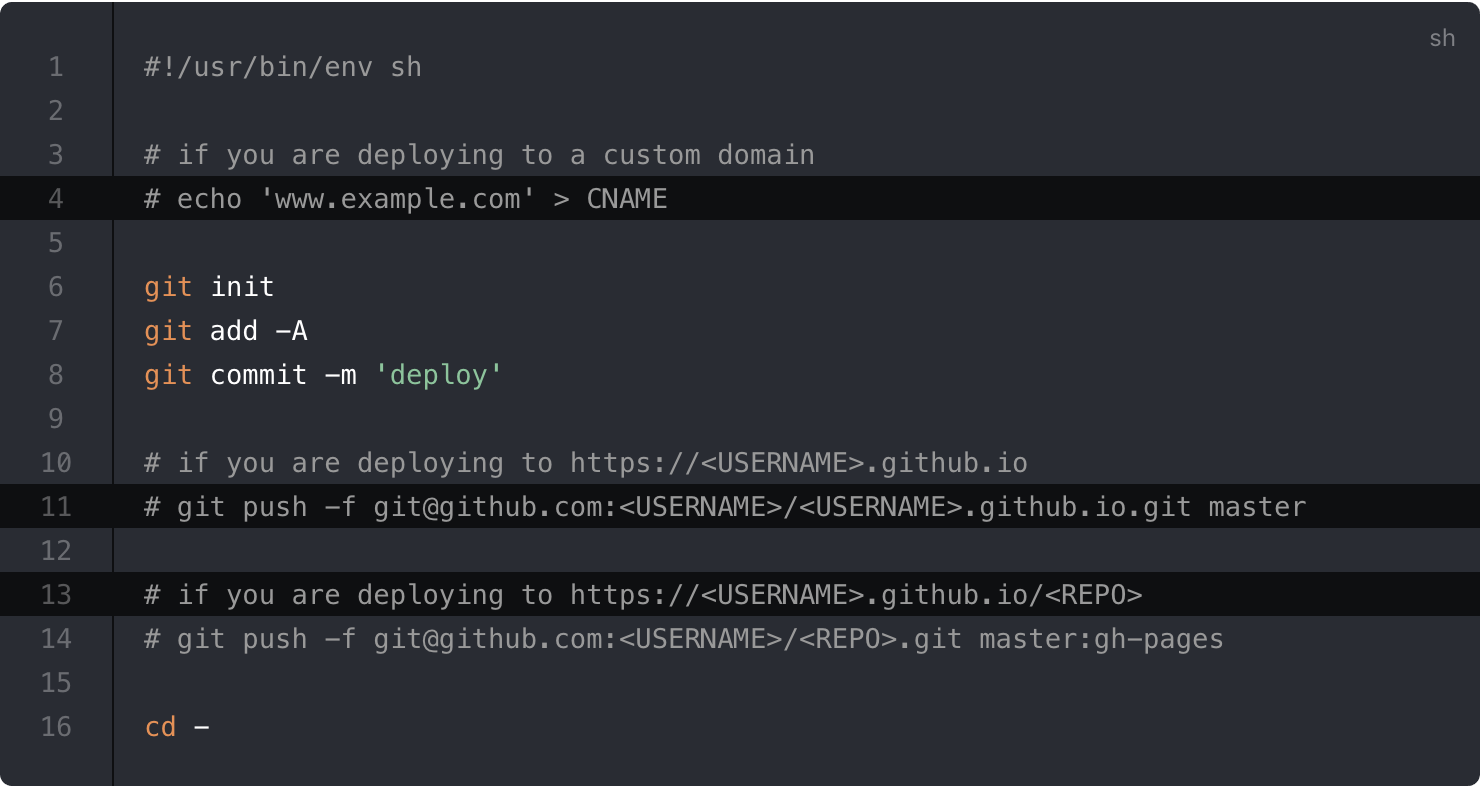
You can enable line numbers for each code blocks via config:
module.exports = {
  markdown: {
    lineNumbers: true
  }
}
- Demo:
Import Code Snippets beta 0.10.1+
You can import code snippets from existing files via following syntax:
<<< @/filepath
It also supports line highlighting:
<<< @/filepath{highlightLines}
Input
<<< @/../@vuepress/markdown/__tests__/fragments/snippet.js{2}
Output
export default function () {
  // ..
}
TIP
Since the import of the code snippets will be executed before webpack compilation, you can't use the path alias in webpack. The default value of @ is process.cwd().
Advanced Configuration
VuePress uses markdown-it as the markdown renderer. A lot of the extensions above are implemented via custom plugins. You can further customize the markdown-it instance using the markdown option in .vuepress/config.js:
module.exports = {
  markdown: {
    // options for markdown-it-anchor
    anchor: { permalink: false },
    // options for markdown-it-toc
    toc: { includeLevel: [1, 2] },
    extendMarkdown: md => {
      // use more markdown-it plugins!
      md.use(require('markdown-it-xxx'))
    }
  }
}